Friday, July 5, 2013

9 Best & Free Social Apps For Windows 8

Filled under:

9. Reddit To Go!

Reddit to go
Reddit To Go app is a reddit app that helps you to comment, submit links, search and more with your reddit account. Reddit To Go is the best redditing app for windows 8 and you can easily use this app because Reddit To Go use great windows 8 features.

8. Instametrogram

Insatmetrogram
Instametrogram app is a instagram app that provides you to see your friends photos and access your own photos. By using Instametrogram you can easily share images, also like and comment on others photos.

7. Rowi

Rowi
Rowi app is a twitter app with simple and easy user interface. In Rowi many great features are available like auto refreshing, inline maps, toast notification and share likes from other apps etc.

6. Metro Twit

metro twit
Metro twit app is a twitter client app for windows 8. Metro twit is simple and easy to use and also provides great user interface. Metro twit provides simple tweet, reply and retweet. You can quickly response to any tweet by using this app.

5. Line

Line
Line app is a best communication app that helps you to send text messages, photo sending, video and voice messages. There are 110 million users worldwide available in 231 countries. So you can enjoy to chat with your friends and family.

4. IM+

IM+
IM+ App is an all in one message app including Facebook, Skype chat, Google Talk, Live Messenger, AOL/AIM/iChat, Yahoo!, ICQ, Vkontakte, Mail.Ru Agent, Odnoklassniki, SINA Weibo, Renren, Fetion, Gadu-Gadu, Yandex chat, Mamba.Ru, Mig33, , MeinVZ and Jabber. You can chat with your friends with text messages and photo sending.

3. Twitter

Twitter
Twitter is a most popular social networking site and is available on windows 8 as a app. You can discover and tweet easily with this app.

2. StumbleUpon

stumbleupon
StumbleUpon is a great platform for liking stuffs and you can discover many things, photos, videos and many more in StumbleUpon.  Now StumbleUpon is available on windows 8 as an app.

1. Skype

Skype
Skype is the worlds most popular communication network ever. Now Skype app also available in windows 8 that helps you to connect with your family and friends by video or voice call and instant messaging. In this app you can call any phone anytime and call Skype-to-Skype for free.

Posted By Light6:23 AM

10 Photoshop Alternatives That Are Totally Free

Filled under:

Gimp

Gimp is probably the most feature rich and well known open source Photoshop alternative that will not make you feel broke. Photoshop may be a bit ahead in terms of bleeding edge features, but most of what Photoshop is capable of can be done somehow in Gimp. GIMP is cross platform and supported by a large community. 
image

GIMPshop

GIMPshop is a modification of the free/open source GNU Image Manipulation Program (GIMP), intended to replicate the feel of Adobe Photoshop. Its primary purpose is to make users of Photoshop feel comfortable using GIMP. It shares all GIMP’s advantages, including the long feature list and customisability, while addressing some common criticisms regarding the program’s interface: GIMPshop modifies the menu structure to closely match Photoshop’s, adjusts the program’s terminology to match Adobe’s. GIMPshop does not support Photoshop plugins, all GIMP’s own plugins, filters, brushes, etc. However it is a great open source Photoshop alternative.
image

Pixlr Editor

This is a web-based photo editor with a layout that looks a bit like Photoshop CS. It has good an amazing interface and arsenal of features considering that it is a free web application  e.g. layers, filters, magic wand, styling, texting, editing and a lot of effects. It does not require signup or anything and you can start editing a file in seconds.
image

Paint.net

Paint.NET is free image and photo editing software for computers that run Windows. It features an intuitive and innovative user interface with support for layers, unlimited undo, special effects, and a wide variety of useful and powerful tools. An active and growing online community provides friendly help, tutorials, and plugins.
image

ChocoFlop

ChocoFlop is a pure Mac application and it has been optimized to run efficient on Mac. It allows you to edit your photos or design stuff using Apple’s CoreImage technology. It takes advantage of the power of your graphics card (GPU).
ChocoFlop is in Beta version but still very feature rich and well structured. It is not going to be free for ever so if you want to give it a try the right time is now.
image

Splashup

Splashup is designed to give you a feeling of working in Photoshop. It is integrated with Flickr, Facebook, Picasa, and more and even support layers. Being a free tool this application offers many features, filters and is really worth trying out. I don’t consider it as strong as Pixlr listed above.
image

Krita

Krita is a creative sketching and painting application based on KOffice technology for Linux. Whether you want to create art paintings, cartoons, concept art or textures, Krita supports most graphics tablets out of the box. Krita comes with some unique and useful features but it is not as powerful as GIMP.
image

Pixia

Pixia was originally a Japanese editor, but English versions are available for Windows now. It is a pretty OK and feature rich editor and it may be worth trying it out.
image

Photoshop Express Editor

Photoshop Express Editor has been built on the pattern of Photoshop itself but comes with a lot less capabilities and minus all the technicalities. It is good for the amateur photographers who don’t want to get indulged into the tricky tools of the Photoshop. Having these superb features the loopholes are there. The printing options are lacking. Also, it doesn’t support photos from higher mega pixel camera.
image

Photoplus

PhotoPlus (starter edition) is a photo editing software that enables you to fix and enhance digital photos, create stunning bitmap graphics and even web animations. Far from being as powerful as Photoshop but if you only have basic needs this is perfect.
image

Phoenix

Aviary offers a suite of tools for editing images, vectors etc. Phoenix is the Aviary image/photo editor and it offers layers and compositing. It is integrated with Flickr, Facebook and Picasa allowing you to import images from these popular services. This is another very interesting free tool to check out before investing in commercial packages like Photoshop.
image

Posted By Light6:15 AM

Thursday, July 4, 2013

Best Free Office Suite

Filled under:


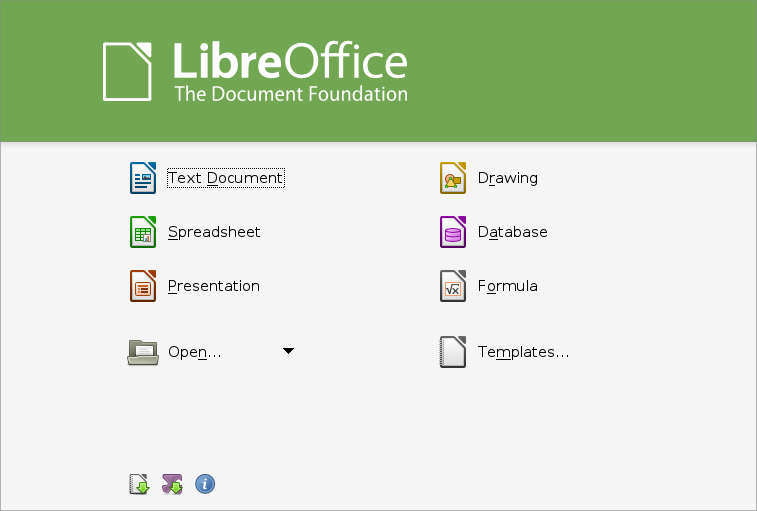
LibreOffice is a comprehensive, professional-quality productivity suite that you can download and install for free. There is a large base of satisfied LibreOffice users worldwide, and it is available in more than 30 languages and for all major operating systems, including Microsoft Windows, Mac OS X and GNU/Linux (Debian, Ubuntu, Fedora, Mandriva, Suse, ...).
You can download, install and distribute LibreOffice freely, with no fear of copyright infringement.

What's outstanding about LibreOffice?

LibreOffice is a feature-packed and mature desktop productivity package with some really great advantages:
  • It's free – no worry about license costs or annual fees.
  • No language barriers – it's available in a large number of languages, with more being added continually.
  • LGPL public license – you can use it, customize it, hack it and copy it with free user support and developer support from our active worldwide community and our large and experienced developer team.
  • LibreOffice is a free software community-driven project: development is open to new talent and new ideas, and our software is tested and used daily by a large and devoted user community; you, too, can get involved and influence its future development.
LibreOffice gives you high quality:
  • The roots of LibreOffice go back 20 years. This long history means it's a stable and functional product.
  • Thousands of users worldwide regularly take part in beta testing of new LibreOffice versions.
  • Because the development process is completely open, LibreOffice has been extensively tested by security experts, giving you security and peace of mind.
LibreOffice is user-friendly:
  • You get a simple-to-use yet powerful interface that is easy to personalize – Microsoft Office users will find the switch easy and painless, with a familiar look and feel.
  • Compatible with all major competitors' file formats. You can easily import files from Microsoft Word, Excel and PowerPoint and many other formats, and can easily save to Microsoft Office and other formats when needed.
  • LibreOffice is supported by a big worldwide community: volunteers help newcomers, and advanced users and developers can collaborate with you to find solutions to complex issues.

What does LibreOffice give you?

Writer is the word processor inside LibreOffice. Use it for everything, from dashing off a quick letter to producing an entire book with tables of contents, embedded illustrations, bibliographies and diagrams. The while-you-type auto-completion, auto-formatting and automatic spelling checking make difficult tasks easy (but are easy to disable if you prefer). Writer is powerful enough to tackle desktop publishing tasks such as creating multi-column newsletters and brochures. The only limit is your imagination.
Calc tames your numbers and helps with difficult decisions when you're weighing the alternatives. Analyze your data with Calc and then use it to present your final output. Charts and analysis tools help bring transparency to your conclusions. A fully-integrated help system makes easier work of entering complex formulas. Add data from external databases such as SQL or Oracle, then sort and filter them to produce statistical analyses. Use the graphing functions to display large number of 2D and 3D graphics from 13 categories, including line, area, bar, pie, X-Y, and net – with the dozens of variations available, you're sure to find one that suits your project.
Impress is the fastest and easiest way to create effective multimedia presentations. Stunning animation and sensational special effects help you convince your audience. Create presentations that look even more professional than the standard presentations you commonly see at work. Get your collegues' and bosses' attention by creating something a little bit different.
Draw lets you build diagrams and sketches from scratch. A picture is worth a thousand words, so why not try something simple with box and line diagrams? Or else go further and easily build dynamic 3D illustrations and special effects. It's as simple or as powerful as you want it to be.
Base is the database front-end of the LibreOffice suite. With Base, you can seamlessly integrate your existing database structures into the other components of LibreOffice, or create an interface to use and administer your data as a stand-alone application. You can use imported and linked tables and queries from MySQL, PostgreSQL or Microsoft Access and many other data sources, or design your own with Base, to build powerful front-ends with sophisticated forms, reports and views. Support is built-in or easily addable for a very wide range of database products, notably the standardly-provided HSQL, MySQL, Adabas D, Microsoft Access and PostgreSQL.
Math is a simple equation editor that lets you lay-out and display your mathematical, chemical, electrical or scientific equations quickly in standard written notation. Even the most-complex calculations can be understandable when displayed correctly. E=mc2.
LibreOffice also comes configured with a PDF file creator, meaning you can distribute documents that you're sure can be opened and read by users of almost any computing device or operating system.
Download LibreOffice now and try it out today. (And Click the text "Main Installer".)
You also need java to run LibreOffice.
Download Java. (Just Click Free Java Download.)

Posted By Light5:48 AM

Windows 8 tip: 5 essential keyboard shortcuts

Filled under:

5 must know Windows 8 keyboard shortcuts Windows 8 tip: 5 essential keyboard shortcutsEven though Windows 8 was designed with touchscreens in mind, there are still plenty of clever ways to zip around the new Windows using nothing but your keyboard.
Read on five of my favorite Windows 8 keyboard shortcuts, including one that’ll help you return to the Start screen with a single keystroke, another that makes searching a breeze, and a third that reveals the new Windows “charms” that hide behind the right side of the screen.

1. The Windows key

Before the new Windows came around, tapping the Windows key would open the late, lamented Start menu.
Now, under Windows 8, pressing the Windows key takes you to the Start menu’s replacement: the eye-popping Start screen.
Search from Windows 8 Start screen 300x294 Windows 8 tip: 5 essential keyboard shortcuts
Just start typing to search from the Windows 8 Start screen.
Tap the Windows key again, and you’ll jump to the last app you were using—such as, say, the Windows Desktop app.

2. Just start typing

Want to search your PC? One way is to open the Windows 8 “charm” panel by moving your mouse to the top- or bottom-right corner of the screen, then clicking the “Search” icon.
Here’s an easier way, though: From the Start screen, just start typing the name of whatever you’re searching for.
The Search menu will open automatically, and search results will start popping up immediately.

3. Windows key + Z

One of the most confusing things about the new touch-friendly apps in Windows 8 is that they lack the familiar toolbar along the top of the program window.
Instead, you’ll often find … well, nothing, not even a “Back’ button.
The trick is to remember the hidden strip of “app commands” along the bottom of the screen.
Windows 8 app commands 300x167 Windows 8 tip: 5 essential keyboard shortcuts
Press the Windows key + Z to open a hidden panel of so-called “app commands.”
To reveal the app commands, you have a few different options: you can right-click the screen, for example, or swipe up from the bottom of the display (assuming you’re using a touchscreen PC or tablet).
But if you prefer an old-school keyboard shortcut, try this:Windows key + Z.

4. Windows key + Q or W

When you type a search query from the Start screen, Windows 8 will search for matching apps first.
If you meant to search for a file or a system setting rather than an app, you’ll have to click or tap to switch search categories.
Annoying, yes, but there it is.
Now, want to save a little time when you know you’re searching for a file or a setting?
Windows 8 charms menu 255x300 Windows 8 tip: 5 essential keyboard shortcuts
You can get quick access to the Windows 8 “charms” by pressing the Windows key + C.
Try this: Tap the Windows key + Qto jump directly to a file search, or Windows key + W to search for a setting.

5. Windows key + C

To open the aforementioned “charm” menu (which boasts shortcuts for sharing, searching, settings, Start, and more), you can mouse to the top- or bottom-right corner of the screen, or swipe in from the right side of a touchscreen-enabled Windows 8 PC.
Or, just do this: press Windows key + C (for “charm,” I’m guessing). Done.
Got more Windows 8 keyboard shortcuts you’d like to share? Post ‘em below!

Posted By Light5:23 AM